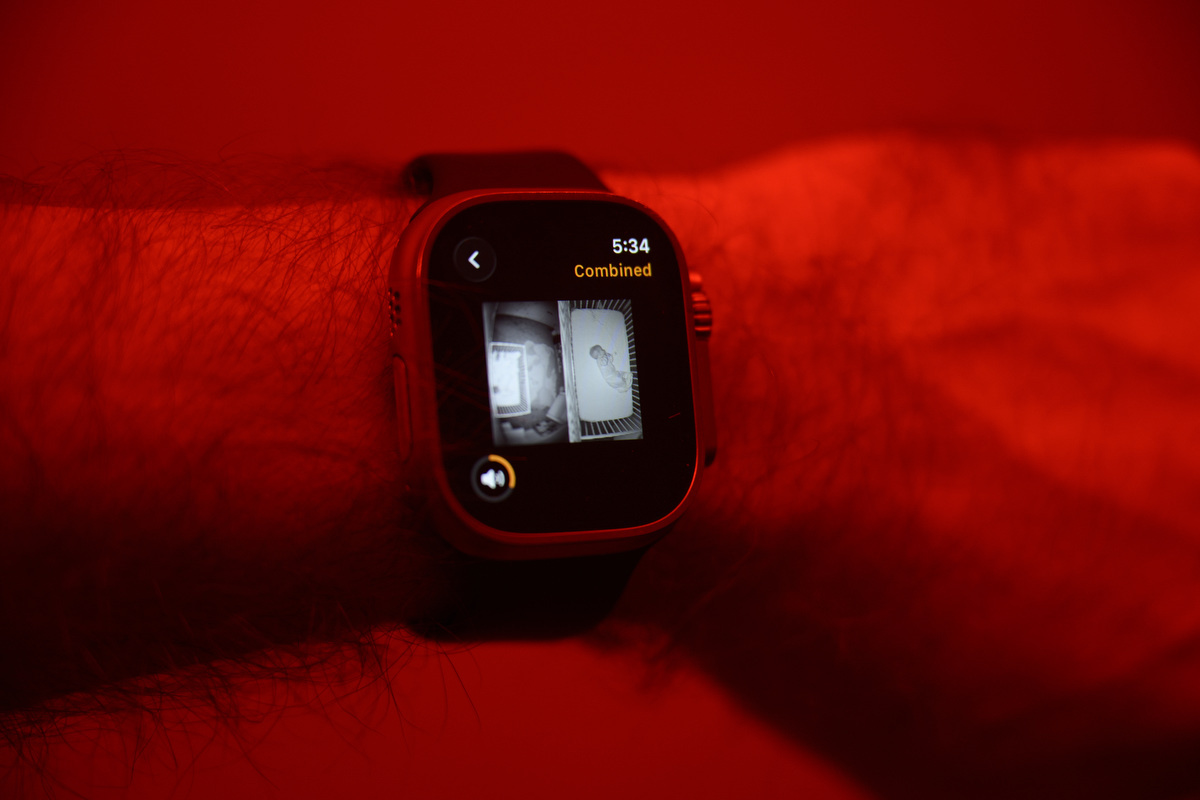
Split-screen baby monitor in Apple Home
I saw your smart home through the video on Smart Home Solver. I went to check out your site, hoping to find more info on your "baby monitoring" setup you did through your Apple TV, Unifi stack, and HA. I have the exact same setup, and my wife and I are about to welcome our firstborn. Could you point me in the right direction on how you managed to make all of that happen? Thank you. - Caleb L., Ohio
First of all, thank you for the question Caleb! Congrats!
While we do have an offline baby monitor for our baby sitter, we use Ubiquiti cameras as our primary monitoring setup, mostly via the Protect app on our phones. The motion event patterns help us see how the kids are sleeping, and we use the AI baby crying detection to turn on our bedroom lights overnight!
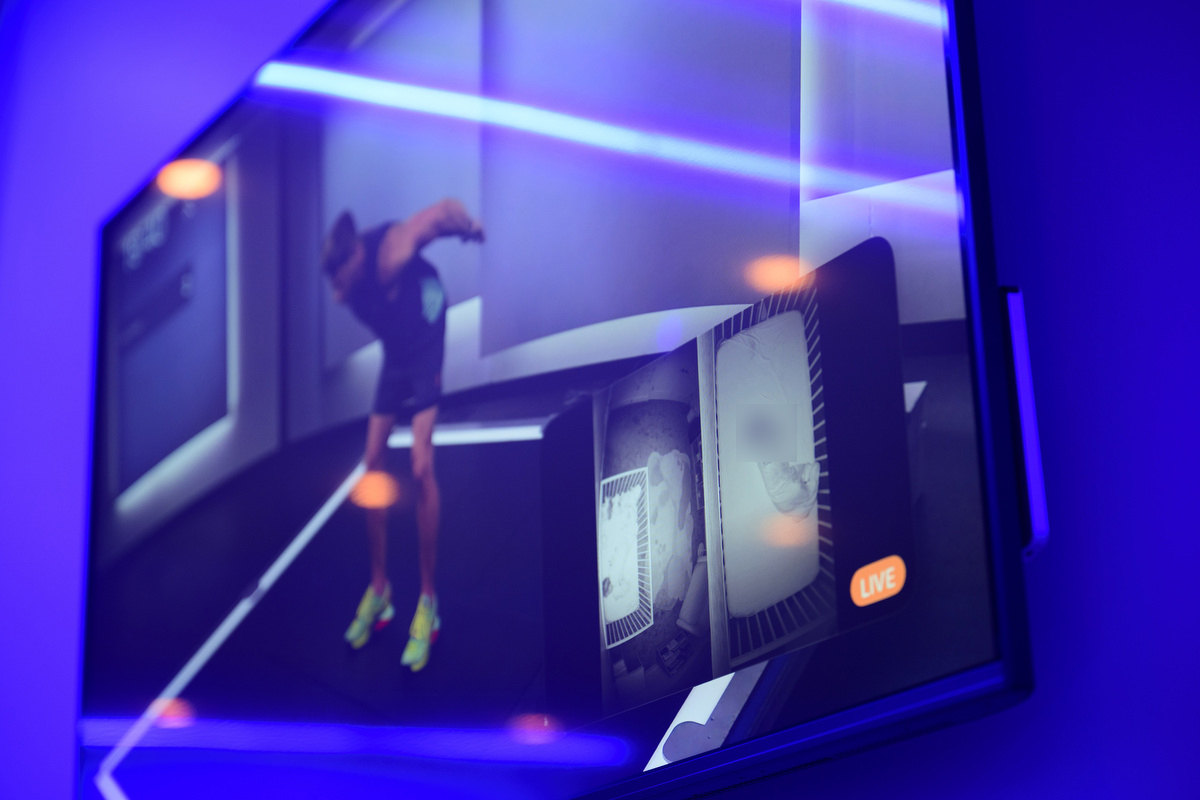
Unfortunately, you can only listen to the audio from multiple cameras using the Unifi web app. Also, we like to keep our phones put away whenever possible, so we were looking for a way to display the cameras on our TV and Apple Watches.
With those problems in mind, set out to 1) combine the two streams into a single feed and 2) get the feed into Apple Home.
To combine the two streams, I used the go2rtc Home Assistant Add-on/App. Under config, I added:
streams:
  combined:
    - "exec:ffmpeg -rtsp_transport tcp -i rtsp://CAMERA_A_IP:7447/xxx -rtsp_transport tcp -i rtsp://CAMERA_B_IP:7447/yyy -filter_complex [0:v]transpose=1[left];[1:v]transpose=1[right];[left][right]hstack=inputs=2,scale=1920:1080:force_original_aspect_ratio=decrease,pad=1920:1080:(ow-iw)/2:(oh-ih)/2:black[out];[0:a][1:a]amix=inputs=2:duration=longest[aout] -map [out] -map [aout] -c:v libx264 -preset ultrafast -tune zerolatency -c:a aac -f rtsp {output}"
This combines the two Unifi cameras (note the rtsp protocol, changed port number and no enableSrtp flag), rotates them to be vertical to fit in a single frame, merges the audio, and outputs a single RTSP feed.
Then, in the Scrypted Home Assistant Add-on/App, add an RTSP camera with the RTSP Stream URL of rtsp://homeassistant.local:8554/combined. From there, it's simply a matter of scanning the HomeKit QR code for the camera to add it to Apple Home!